
About
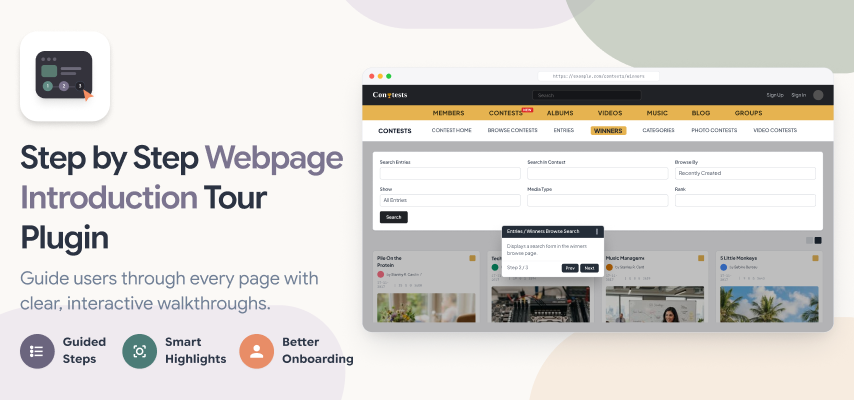
Step by Step Webpage Introduction Tour Plugin is the best product to explain new and complex features of your website to your users in step by step tips and navigation. Using this plugin, you can easily highlight newly introduced features of your website. You can also explain any complex features of your website to you users with the explanatory tour tips with suitable titles and descriptions.
Each tip is powerful to have its own title, description, placement and can chosen to be highlighted with the Dark Overlay in background so that the widget for which the tour tip is created is only displayed catching the users’ complete attention onto it.
Key Features
Easy to Configure
Very easy to install and configure in 2 easy steps:
a. Choose pages, create and configure tours.
b. Choose widgets, create and configure tour tips.
User-friendly & 100% Responsive
Users can easily navigate using keyboard or mouse. You can choose to enable / disable navigation buttons.
Cross-Browser Compatible
Works on all modern browsers like Google Chrome, Mozilla Firefox (on developer edition also), Opera, Safari.
Start Tour Automatically
You can choose to start the tour automatically on a page for the first time when user visit that page or always display the tour whenever user visit that page.
Start Tour Manually
You can choose to manually start the tour by clicking on the “Start Tour” button. You can also choose to manually start the tour after playing it automatically for 1st time.
Navigate to Another Page
You can also navigate users from 1 page to another page automatically in the tour. While creating the tour, you just have to enter the URL of the next page in the last tip.
Create Unlimited Tours
You can create any number of tours and for all pages on your website, but 1 tour for a page.
Create Tour Tip for all Widgets
You can create tour tip for all the widgets placed on that page, but 1 tip for a widget*.
1 Tip for Same Widget on a Page
If you have placed same widget multiple times on a page, then you can create tip for the 1st placement of that widget on a single page.
A Shiny Dark Overlay
If you need to highlight the current tour elements, then you can simply activate the dark overlay background for each tip and users’ will not lose the focus from the features you are highlighting!
Automatically Expiring Step
You can make your tour completely automatic. You can set the duration, for the tour tips for the tour steps to disappear in that duration. You can also enable users to Pause & Resume tours.
Option to End Tour Anytime
You can also enable users to End a tour anytime by clicking on the End Tour button. The text can also be configured from admin panel for each button options visible on a tour’s tip.
Why to use this plugin?
- Sometimes, the website has very easy to use features, but users can not understand the functionality.
- Whenever you launch new features on your website.
- If you have complex features on your website.
- If you have features that show upon taking some action on a button or widget.
- If some page opens on clicking a widget or a button and user can not easily see that.
- If you need a user action on some widget, then you can highlight that feature with the help of tour tip.
- And many more as per your site’s idea and concept.
Administrator
- Create a tour and for each tour, Admin can
- Enable / Disable Previous, Next, Pause/Resume, End Tour buttons.
- Write texts for the above mentioned buttons.
- Apply various settings for the tour playing like:
– Automatic start of tour for 1st time. After this users have to click on the “Start Tour” button.
– Start tour automatically whenever user visit this page.
– Do not start tour automatically. Users have to click on the “Start Tour” button. - Allow users to view Start Tour Button.
- Fix the duration for staying on one step.
- Create a tip ad for each tip, Admin can
- Write title for the tour tip.
- Write description of the tour tip.
- Highlight a particular step with dark overlay in background.
- Set the placement for each tip like left side, right side, top or bottom.
- Set the next page url on the last tip of the page, after which the user will redirect to the next page of tour.