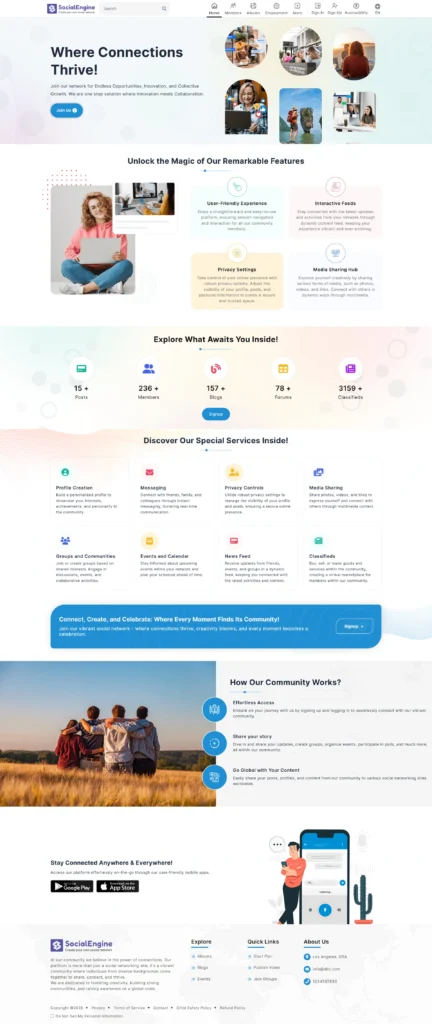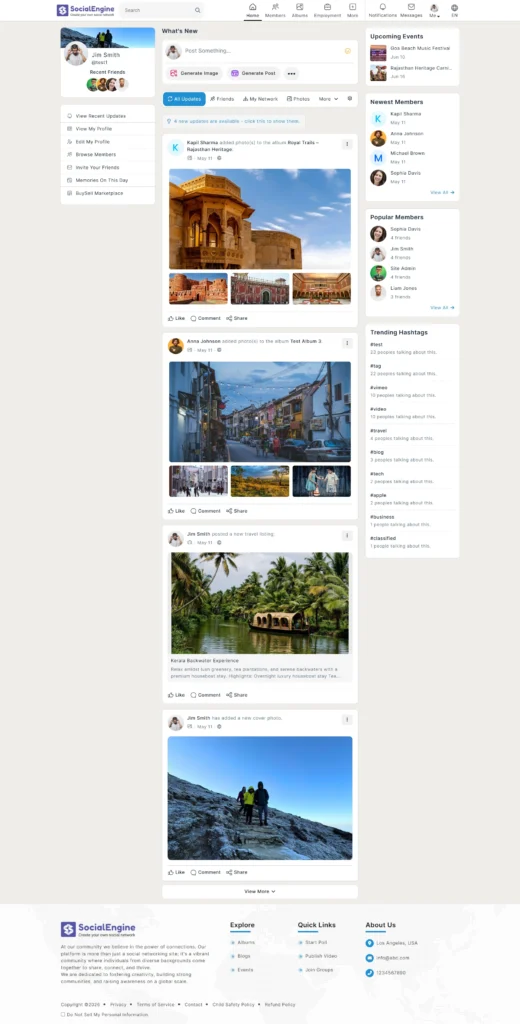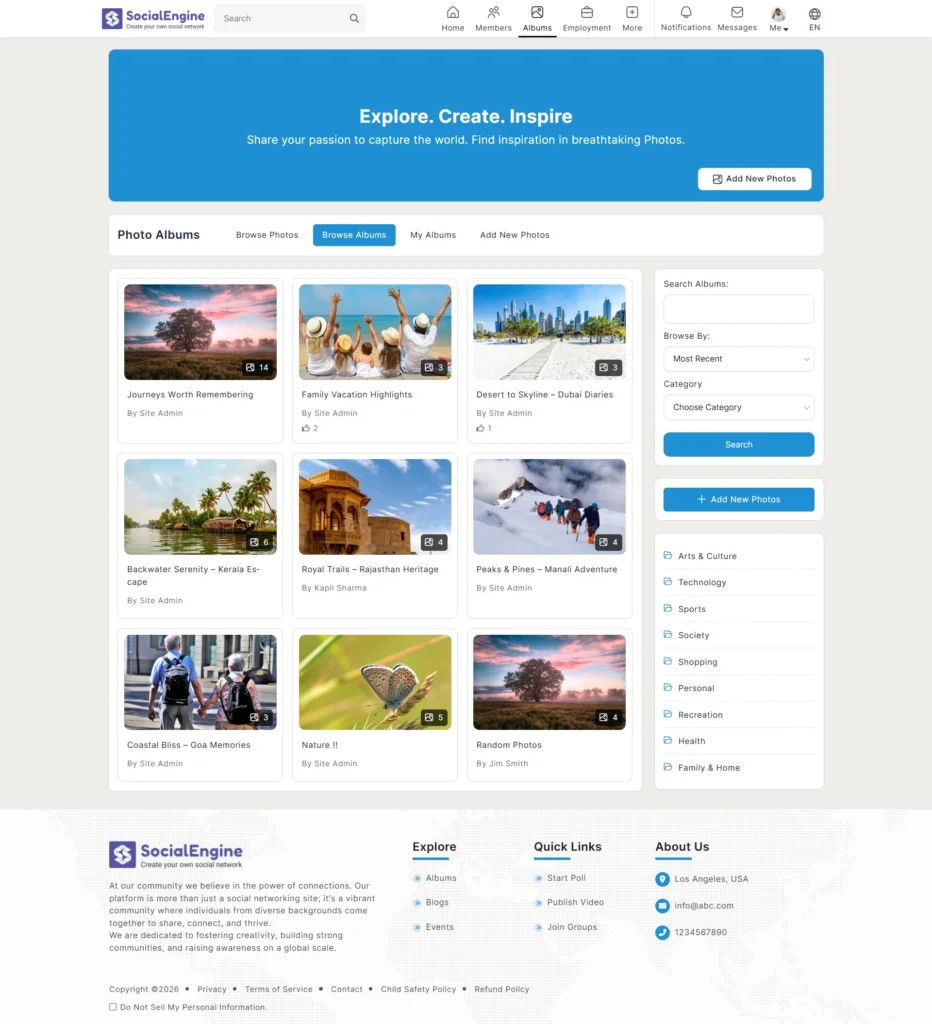
Too often, website templates force your unique brand into a boring, rigid box. If you want to change a color, move a menu, or add your logo, you usually have to go into the code or hire an expensive developer just to make it look right.
But Harmony theme changes all of that by putting you back in control.
Instead of making you adapt your community to a static layout, SocialEngine’s Harmony theme easily bends and shapes to fit your exact goals. It gives you a simple toolkit to build a professional space that perfectly matches your true brand identity.
Why Community Owners Prefer Harmony Theme?
Website templates usually leave you with no other choice but to blend to a fixed template that resembles the designs of everyone else out in the market.
Fortunately, this is not the case with Harmony. It allows you to customize the entire theme to your preference without any coding, and it contains entirely mobile optimized feature and contrasting modes for an easy interface experience, along with an admin area where you can control everything.
Discover What Harmony Theme Can Do for Your Community
Building a unique online space requires a balance of powerful backend controls and beautiful frontend design. Harmony theme simplifies customization by gathering your most critical configuration tools into different management areas.
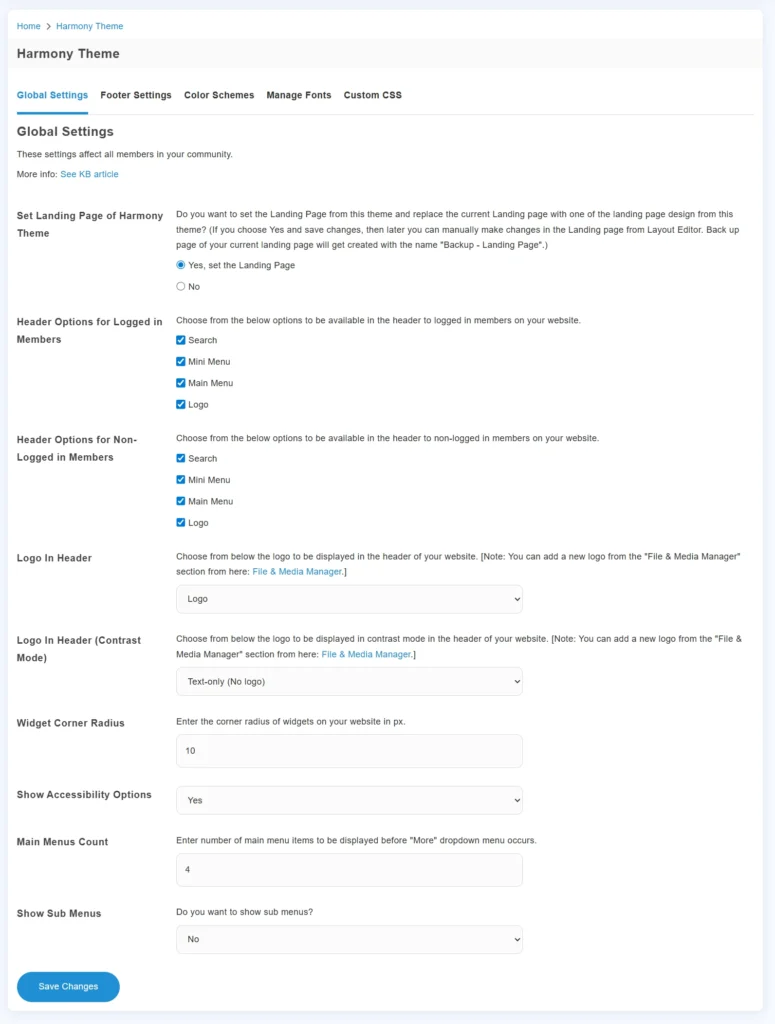
Global Settings
The Global Settings screen serves as the master control center for your community’s overall layout and basic features. It lets you change how your site looks and behaves without touching any code.
- Set Your Homepage: Quickly turn on Harmony’s custom landing page design to replace your old, default homepage layout.
- Header Customization: Choose exactly which buttons (like Search, Mini Menu, Main Menu, or the Logo) show up at the top of the page. You can set different rules for logged-in members and logged-out visitors.
- Header Logos: Upload your brand logo, and add a separate high-contrast logo so your branding always looks crisp, even in different lighting modes.
- Shape Your Content: Change the widget corner radius (in pixels) to make your content boxes look sharper or more rounded.
- Menu Item Limits: Set the maximum number of links to show in your main menu before the rest neatly bundle into a “More” drop-down button.
- Turn on Accessibility: Easily enable accessibility options to help make reading and navigating your site easier for everyone.
Footer Settings
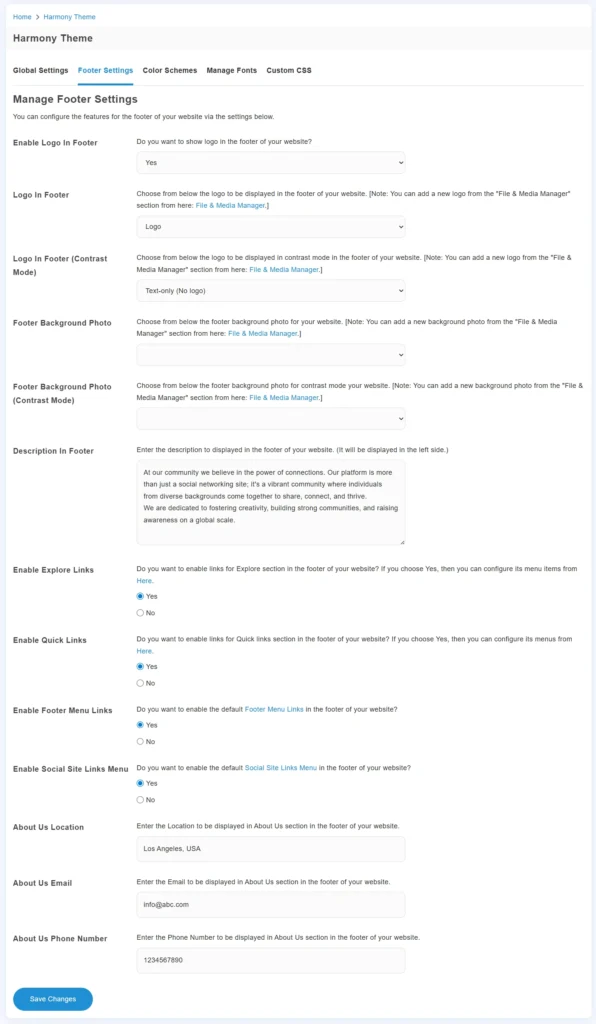
The Footer Settings panel helps you organize the very bottom of your website. It turns a basic footer into a clean space for important links, text and contact details.
- Footer Branding: Choose whether to show a logo at the bottom, select special logos for contrast mode, or pick a custom background photo for the footer area.
- About Us Text: Type a short description about your community that will appear on the left side of the footer.
- Organized Quick Links: Turn on different link columns like Explore Links, Quick Links, and default Footer Menu Links to help users find important pages fast.
- Social and Contact Info: Turn on your social media icon links, and your business location and support email address so users can get in touch.
Color Schemes
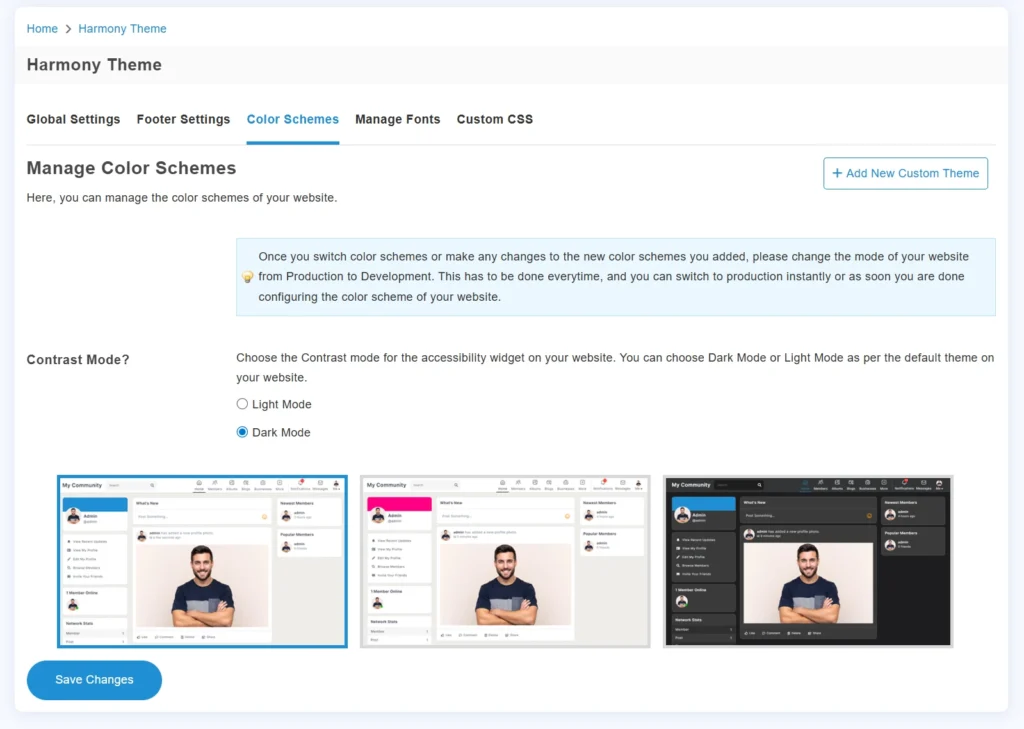
The Manage Color Schemes screen removes the confusion of editing complex stylesheets. It gives you a visual way to manage how colors display on your network.
- Set Default Contrast: Choose whether your site’s alternative view defaults to Light Mode or Dark Mode.
- Preview Variations: Look at side-by-side visual examples of your community layout to see how your colors and menus fit together.
- Development Mode Reminder: The panel includes a helpful reminder to switch your SocialEngine site from Production to Development mode while editing colors, ensuring your updates show up instantly.
Manage Fonts
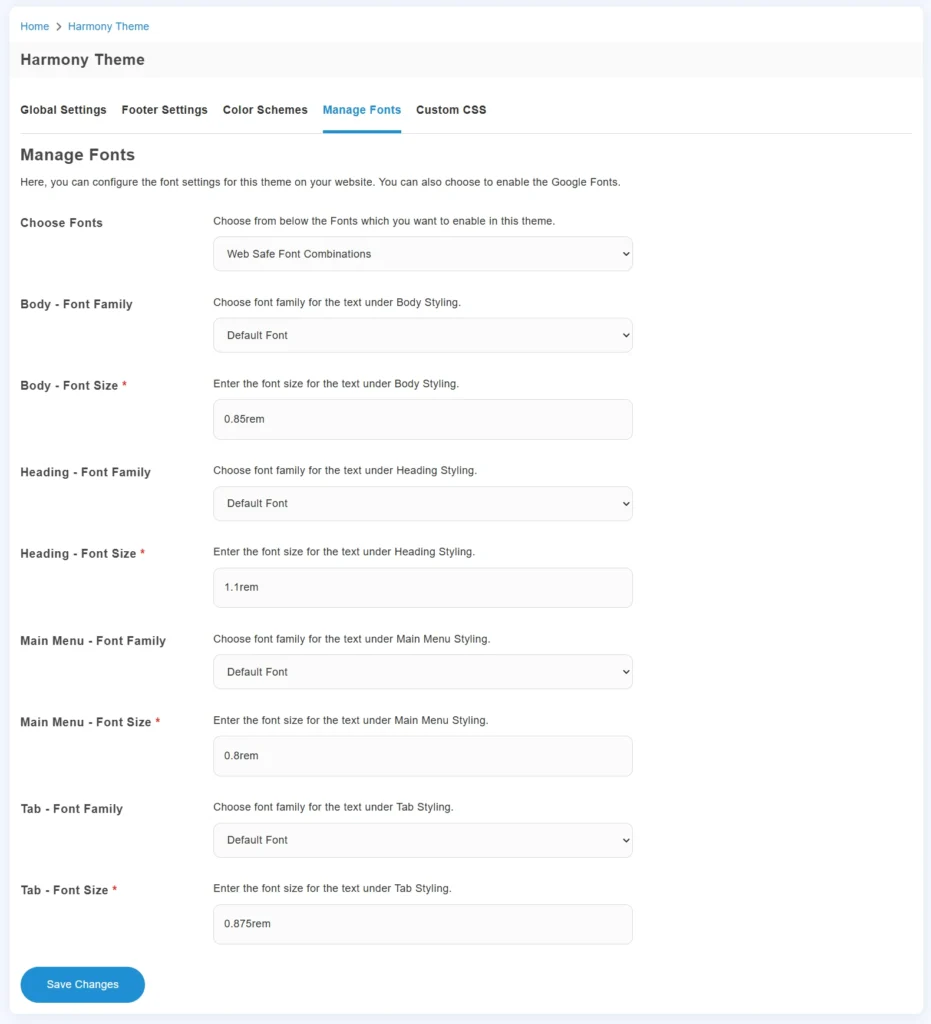
Manage Fonts allows you to modify all the font styles, thus helping you reach your goals of matching your branding and increasing readability on your website.
- Fonts Settings: You have an option of using pre-defined fonts or uploading your own fonts.
- Different Font Styles: Apply separate fonts to different areas of your website like the body, headings, navigation menu, and tab fonts.
- Size Settings: Set your font size to specific values using simple measurement units like em.
What Can You Create With Harmony Theme?
Harmony has enough flexibility to integrate itself into any community purpose within SocialEngine.
- Education: A layout that will help the students find their courses without any difficulties.
- Pet Dating: Ideal for pet owners who want to exchange pictures and arrange activities for their pets.
- Freelancing: A professional environment where freelancers can share their projects with users and post job offers.
- Business: A place for businesses to communicate with their customers and provide the latest news.
- Sport Events: an environment that will allow organizing sports activities and checking their schedule.
- Health Care: A comfortable forum where people could freely express their opinions on healthy lifestyle.
- Finance: A secure feeling space for members to discuss markets and money trends.
- And much more.
Get Started By Building Your Custom Community Today!
By combining simple customization tools with modern accessibility features and a fully mobile-friendly design, Harmony gives you everything you need to build a professional home for your network on SocialEngine. It is the perfect toolkit to turn a basic website into a lively, recognizable, and welcoming community.
Try the Live Demo to see it in action, or Buy the Harmony Theme today to start building your unique space completely risk-free with our 14-day free trial!
FAQs